Customers
Every person who messages your agent gets a customer profile that follows them across channels. Merge duplicates and take over chats from your staff.
Every person who messages your agent becomes a customer in Ecbot. The profile keeps their name, contact details, notes and tags, and it follows them across channels, so a customer who writes on Messenger and later on Zalo can be treated as one person. You see and edit it next to each conversation.
Customer profiles
A profile is created the first time someone messages one of your channels. After that it fills in by itself:
- the name comes from the chat app when it is available;
- the agent saves the name, phone, email and language the customer shares, and other details you ask it to collect (for example a delivery address);
- after a conversation ends, Ecbot adds tags such as Hot lead or Returning customer, and a short summary for the agent.
The agent never stores payment details. To see or edit a profile, open Conversations, pick a chat, and use the customer panel on the side. It shows the name, phone, email, language and notes, the Contact points (each chat app the customer wrote from), Tags and the customer's follow-ups.
Merge duplicate customers
When two profiles in your workspace end up with the same phone number or email, Ecbot suggests merging them and notifies your team.
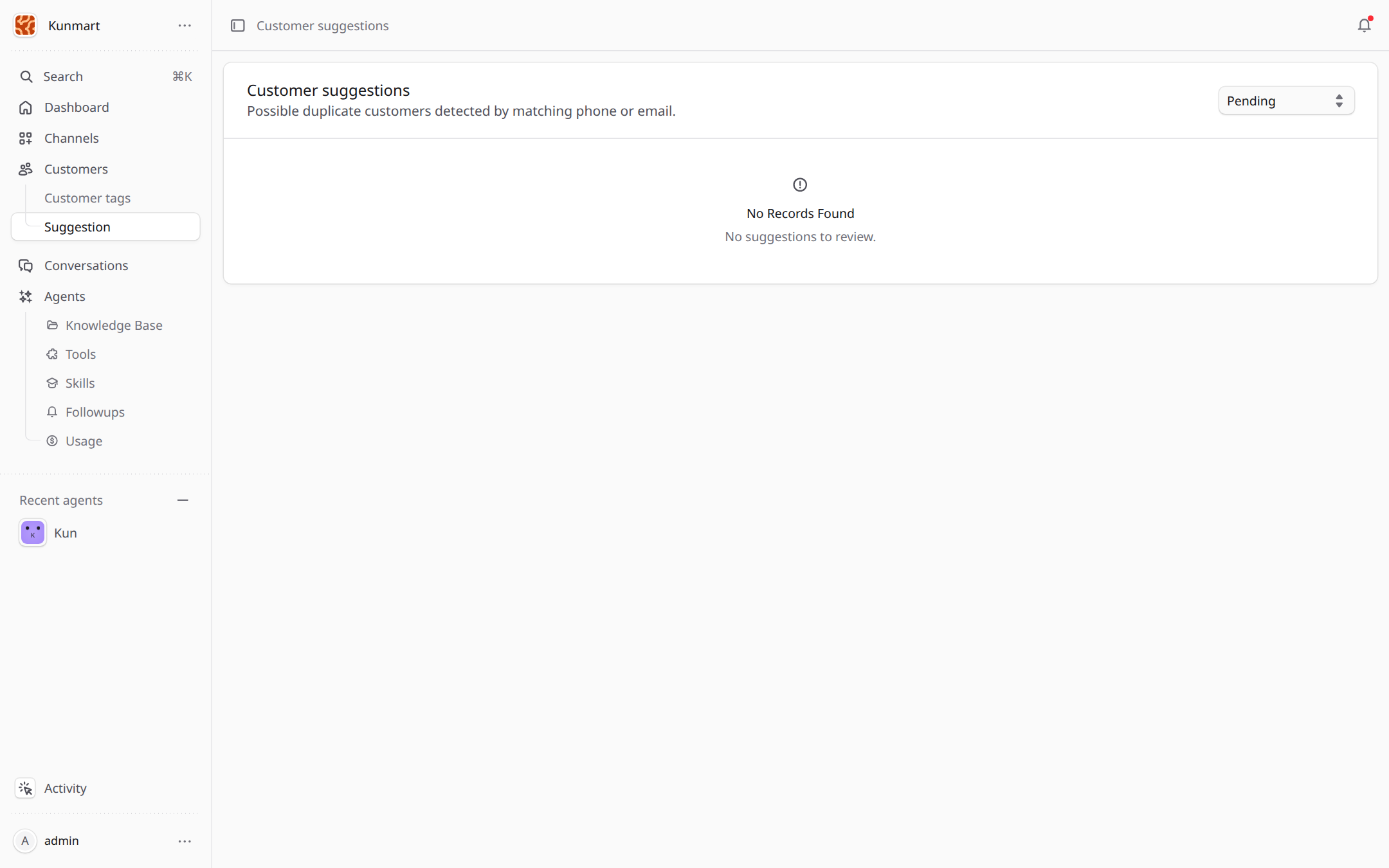
- 1Suggestion under Customers in the sidebar. A badge shows how many are waiting.
- 2Suggestions waiting for you. Each row shows the two customers and the matching phone or email.
Choose Review on a suggestion, pick the customer to keep and which name, phone, email, language and notes to keep, then Confirm merge. Their chats and contact points move to the kept profile. Choose Dismiss if they are different people. If you merged by mistake, open the customer panel and choose Unmerge.
Conversations and handoff
Open Conversations to read every chat.
Conversation statuses
Each conversation shows one status. Hover it in the app to see what it means.
| Status | Meaning |
|---|---|
| Bot active | The agent is replying to the customer. |
| Needs you | The agent handed the chat to your staff and stopped replying. Someone on your team should answer. |
| You're handling | A staff member paused the agent and is replying. The agent stays quiet until it is switched back on. |
| Resolved | Staff handled what was handed over. The agent answers again and does not hand the same matter over again. You can still send messages. |
How a conversation moves between them:
- Bot active becomes Needs you when the agent hands over (see below).
- Bot active becomes You're handling when a staff member chooses Pause bot.
- Needs you or You're handling becomes Resolved when a staff member chooses Resolve, or Bot active when they switch the bot back on.
- Resolved becomes Bot active again when the customer sends a new message, or when a staff member chooses Restore to auto from the conversation menu.
- A new request that needs staff, such as an order change, hands over again even after Resolved.
The agent hands a conversation to your staff when:
- the customer asks for a person, using words such as "staff", "nhân viên" or "tư vấn viên", or the keywords you add in the agent's Handoff Settings;
- the agent fails to reply several times in a row (3 by default);
- the customer gets a tag that triggers a handoff, see Customer tags;
- a guardrail blocks a message and the agent is set to escalate blocked messages.
On handoff the agent stops replying in that conversation and everyone in the workspace gets a notification. Reply from the conversation, use Pause bot to take over a chat yourself, Resolve when you are done (the agent answers again and does not hand that over again), or Restore to auto to let the agent answer again.
Frequently asked questions
Open the conversation from Conversations. The customer panel beside the chat shows their name, phone, email, language, notes, contact points, tags and follow-ups.
Ecbot creates a suggestion under Suggestion. You choose which profile to keep and which details to use, or dismiss it. A merge can be undone with Unmerge.
No. The agent pauses in that conversation and your staff get a notification. Reply from the conversation, then choose Resolve when you are done and want the agent to continue.
Channels
Connect your agent to Facebook Messenger, Zalo, Telegram, WhatsApp or a chat widget on your website so it replies where customers already message you.
Customer tags
Customer tags label customers as VIP, Hot lead or Angry. The agent and Ecbot apply them for you, and some tags pass the chat to your staff.