Skills
Skills are written instructions that teach your agent how to handle one kind of request, such as a refund or a complaint, loaded only when needed.
A skill is a written procedure your agent follows for one kind of request, for example handling a refund or calming an upset customer. Skills do not call other systems by themselves; they tell the agent what to ask, what to check and what to promise, and they can name the tools to use.
Your skills
Open Skills under Agents in the sidebar.
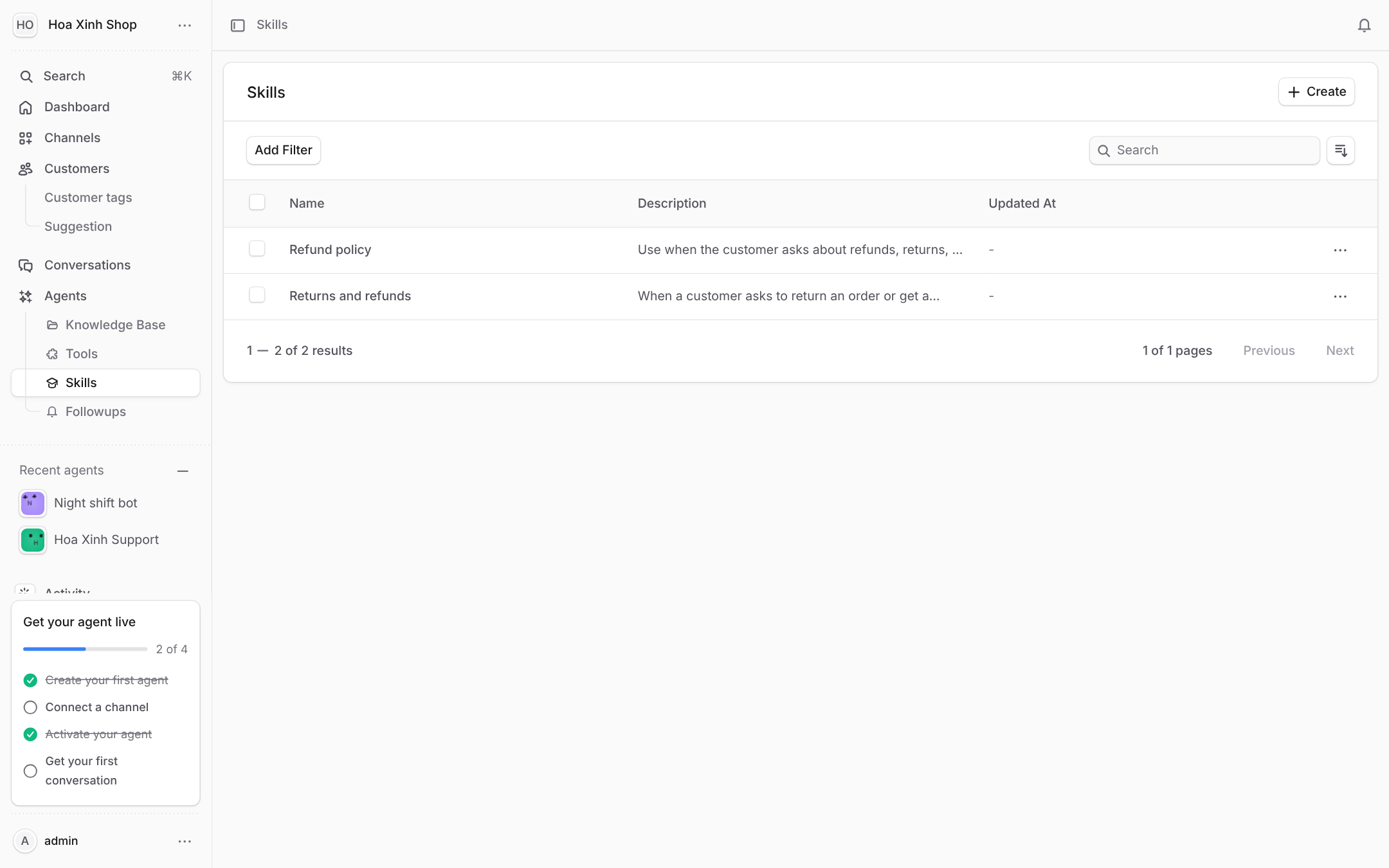
- 1Create opens the skill form.
- 2Your skills. Open one to edit or turn it off.
Start from a template
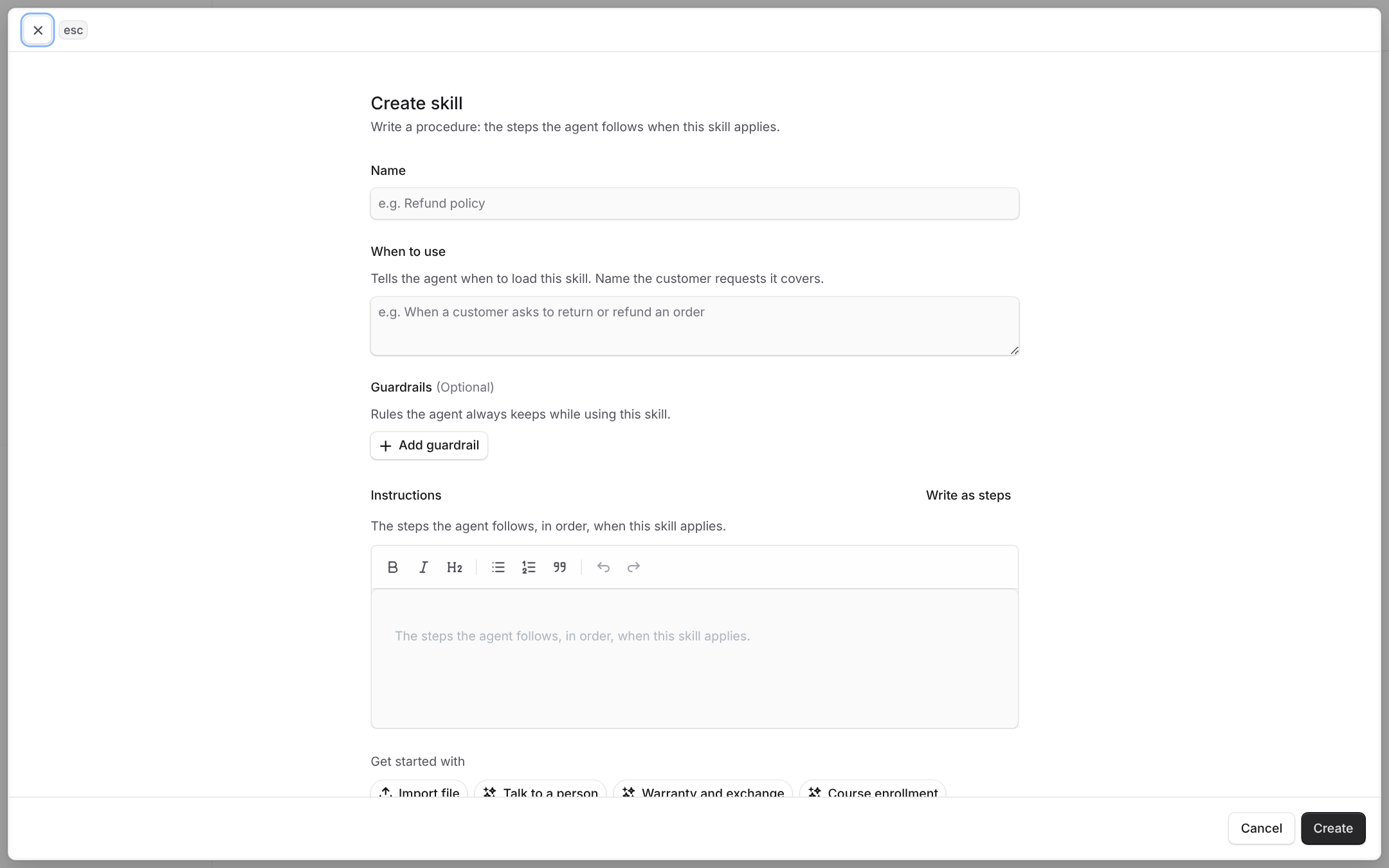
- 1
Get started with fills the form from a ready-made skill, such as Book an appointment or Order status. You can also import a
.mdfile.
Write a skill
- Name: a short label, such as "Late delivery".
- When to use: when the agent should load the skill, for example "Use when a customer says an order has not arrived." Make it specific.
- Guardrails (optional): rules the agent always keeps while using the skill, even when a step says otherwise.
- Instructions: written as text in Markdown, or as steps. Click Write as steps on an empty form to use steps.
Write it as steps
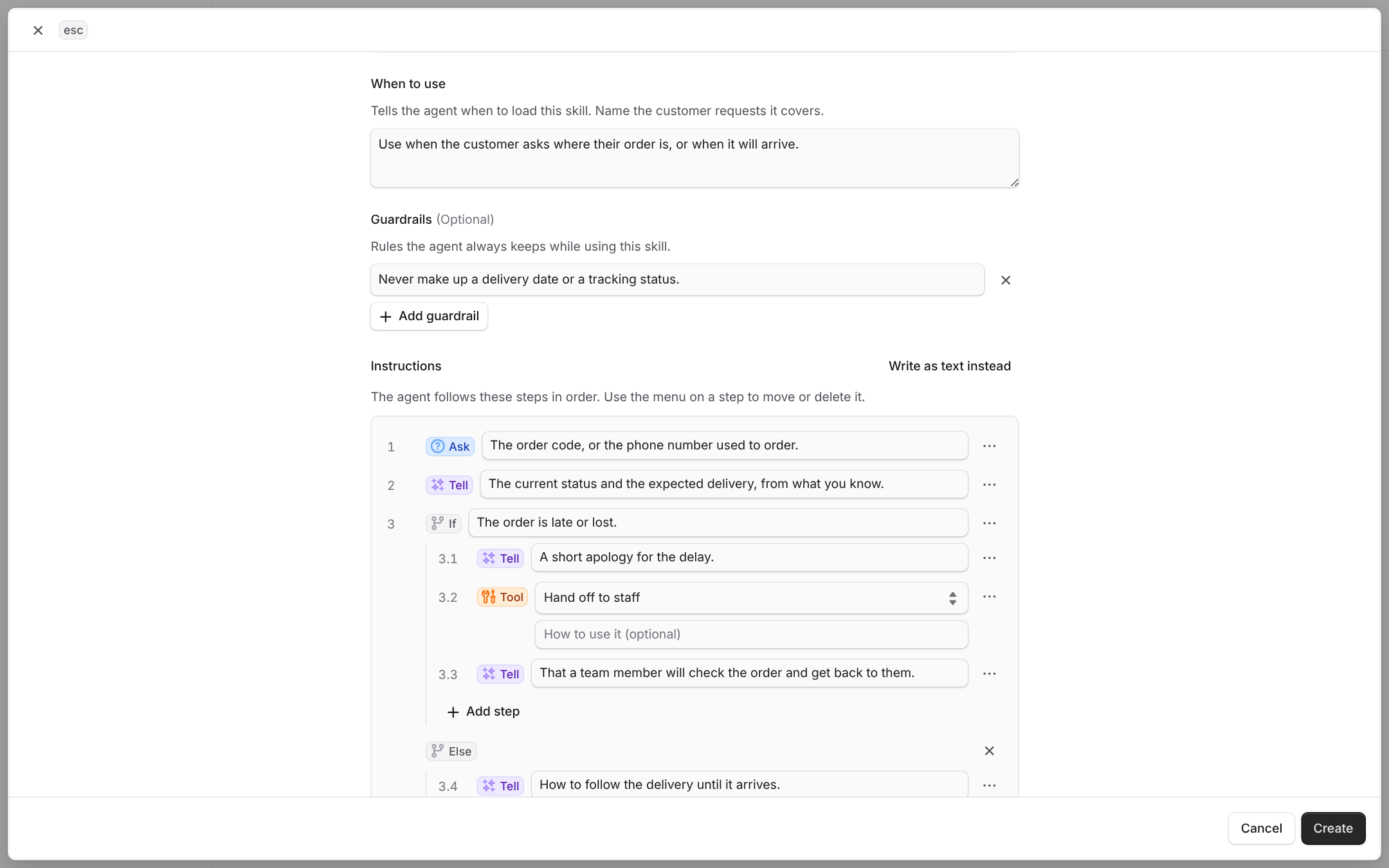
- 1
Each step has a type and its text. The menu on the right moves or deletes it.
- 2
If branches on a condition. Add Else if or Else below it.
- 3Tool calls one of your tools or a built-in action.
- 4Add step adds a step to that list.
- Ask: what to ask the customer for. The agent skips it when the customer already said it.
- Say: an exact message. The agent translates it when the customer writes in another language.
- Tell: what to tell the customer, in the agent's own words.
- Tool: one of your tools, or a built-in action: hand off to staff, notify the team, add or remove a tag, schedule a follow-up, or save customer info.
- If: steps that only run when a condition is true.
Pick a tool
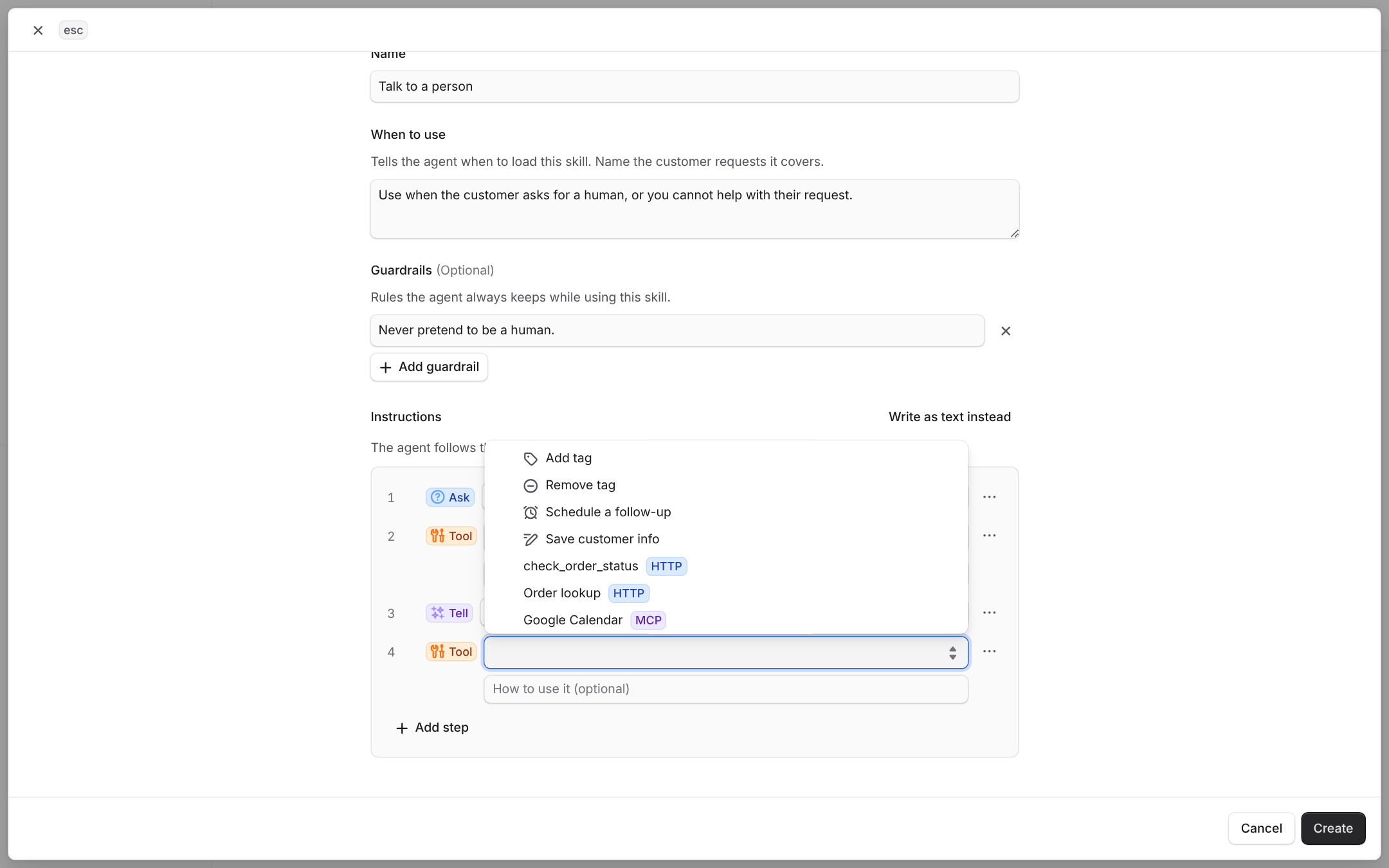
- 1
Type to search. Built-in actions are listed first, each with its icon.
- 2
Your tools come next, marked HTTP or MCP. Scroll down to load more.
An MCP tool also asks which of its actions to call. Add tag and Remove tag ask for the tag, and Save customer info asks for the field name. Ready-made examples are in the cookbook.
Write as text instead turns the steps into text you can edit freely. You cannot turn text back into steps.
Attach a skill to an agent
Open the agent's page, go to the Skills section and add the skill. You can turn an attached skill off for one agent without deleting it.
Frequently asked questions
The agent always sees each attached skill's name and description. When a conversation matches a description, it loads the full instructions for that turn.
Picking a template fills the create form. You change anything you like before you create the skill, and the skill is yours from then on.
The name can be up to 150 characters, the description up to 500 and the instructions up to 64,000 characters. Shorter, step-by-step instructions work best.